Tasks in ThingPark Enterprise
Creating the Netmore Go connection does not automatically send every TPE device to Netmore Go. Each required device must be associated with the connection.
Associate an existing device
- In TPE, open Devices and select the device.
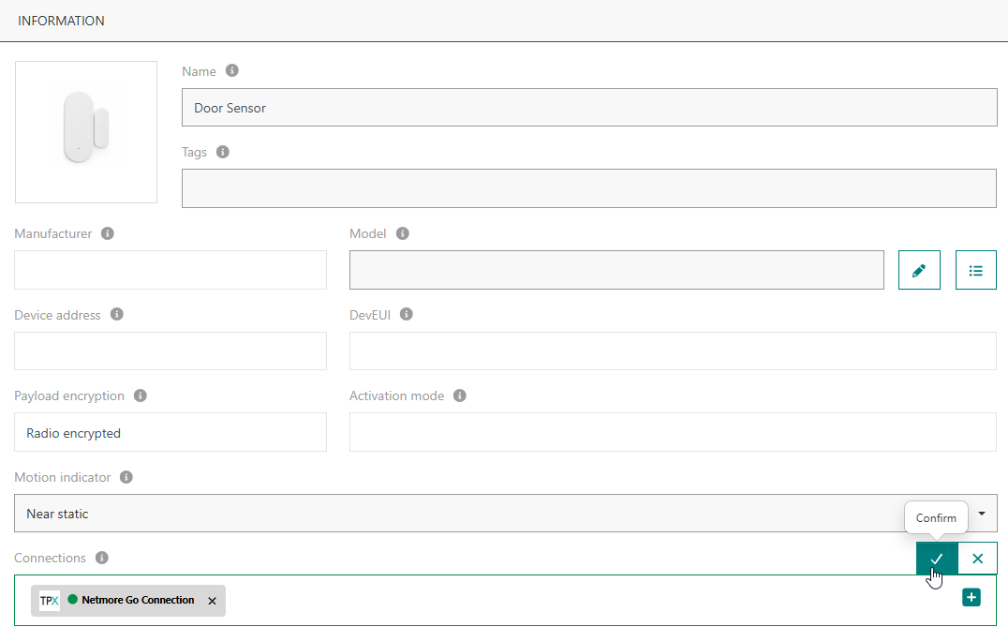
- Find the Connections field and select the Netmore Go connection.
- Confirm the connection to save the change.
TPE allows a device to be associated with one or several connections. Adding Netmore Go does not require removing other application connections.
Associate a new device
- Provision the device in TPE as normal.
- During provisioning, select the Netmore Go connection in the connection association section.
- Complete the provisioning.
- Confirm that the device joins and transmits.
Add or update devices in bulk with CSV
Use TPE Bulk Operations when you need to add the Netmore Go connection to multiple existing or new devices.
- In TPE, open Devices.
- Select Bulk Operations.
- Select Add, update and delete devices from CSV file.
- Download the Sample File.
- When adding new devices, also download the Model List to identify the correct ThingPark Device Model ID.
- Prepare the CSV:
- Column A defines the operation.
- Column B identifies the device by DevEUI.
- Open the Netmore Go connection in TPE and copy its Connection ID.
- Put this Connection ID in Column T for every device whose uplinks must be forwarded to Netmore Go.
- If a device uses several application connections, enter the multiple Connection IDs in Column T.
- Upload the CSV and select Import.
- When processing finishes, check the TPE notification. Correct any reported rows and re-import the corrected file if required.
When updating a device, empty optional columns retain their current value. For supported fields, _unset explicitly removes the existing value. This is useful when maintaining connection assignments, tags, or other optional attributes at scale.
For more information, see Bulk Operations.
Verify the TPE connection
- Open TPE → Connections → Netmore Go Connection → Open ThingPark X IoT Flow.
- Check that the connection health is active.
- Check that the required devices are listed and associated.
- Confirm packet activity on the connection details page.
- If necessary, use the TPE Wireless Logger to confirm that TPE is receiving the device uplinks.

Next step
Continue with Add and verify devices in Netmore Go.