Using Netmore Go dashboards
Device dashboards
A template-based product normally provides a device dashboard immediately. You can retain the supplied dashboard or adapt it to your use case.
Edit a device dashboard
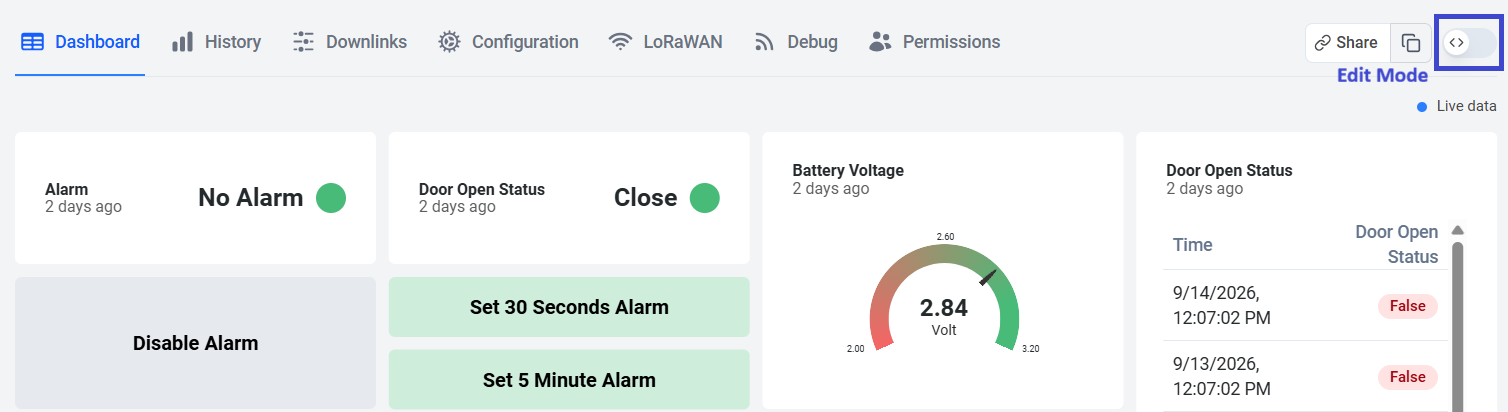
- Open a device and go to its Dashboard.
- Enable Edit mode using the edit control on the right side.
- Add, move, or edit widgets.
- Use a Value widget for live or current values.
- Use a Chart widget for trends, then select the relevant fields.
- Choose the chart time range and resolution.
- Save your changes.
When several devices use the same product, they share the product dashboard. Keep model-wide changes generic. Use a global dashboard for a fleet or customer-level view that combines different devices.
Fleet or global dashboards
Global dashboards combine data from multiple devices and are suitable for site, customer, or fleet overviews.
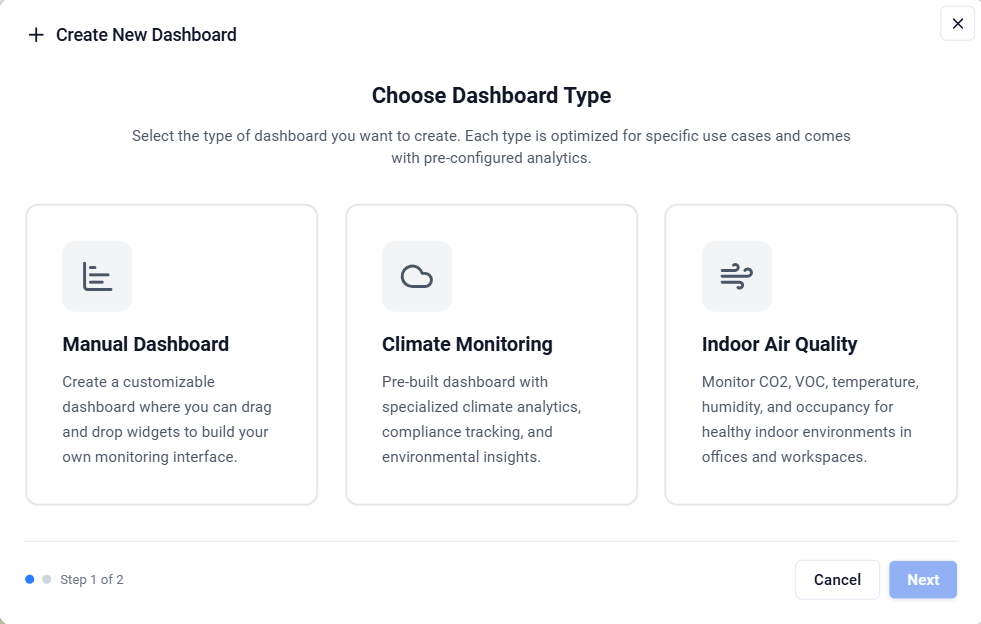
- Under Dashboards, select + Add Dashboard.
- Create a new dashboard or create one from an existing template.
- Name the dashboard.
- Enter Edit mode and add or edit widgets.
- For a Chart widget, add the required device and field as the data source.
- Repeat for additional devices and fields.
- Save the dashboard.
- Configure access for the appropriate workspace members.
Prefer sharing dashboards with authenticated workspace members. Public links should be treated as external data sharing and enabled only for approved use cases.
Next step
Continue with Rules and notifications.