Kamstrup Driver Instructions
Protocol ID: kamstrup:generic:1
Introduction
The driver with protocol ID kamstrup:generic:1 decodes the Kamstrup flowIQ®2200 water meter (model kamstrup:flowiq2200-02k73:1).
The meter joins the LoRaWAN network and sends wireless M-Bus (OMS) data, usually encrypted with OMS Security Profile D (AES-128). To decrypt it, the driver needs the meter's Data Encryption Key (DEK), which you provide as a device tag.
The meter sends two kinds of uplinks:
- Installation frame (FPort 6): sent right after the meter joins the network. It identifies the meter.
- Data frames (FPort 4): the regular consumption data, sent at the configured interval.
Getting the DEK from MyKamstrup
Kamstrup delivers the keys of your meters through MyKamstrup, as an encrypted KEM2 file.
Download the KEM2 file
-
Log in to MyKamstrup.
-
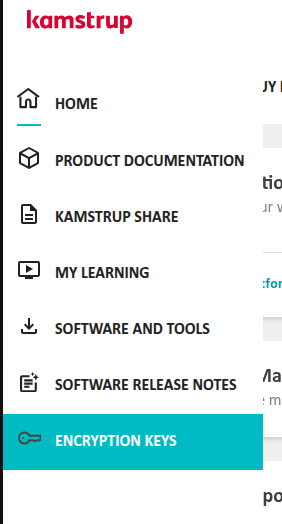
In the left navigation panel, select Encryption keys.
-
Select your meters (or All devices) and click Download.
-
Choose the KEM2 file format, enter a password for the file, and click Download.
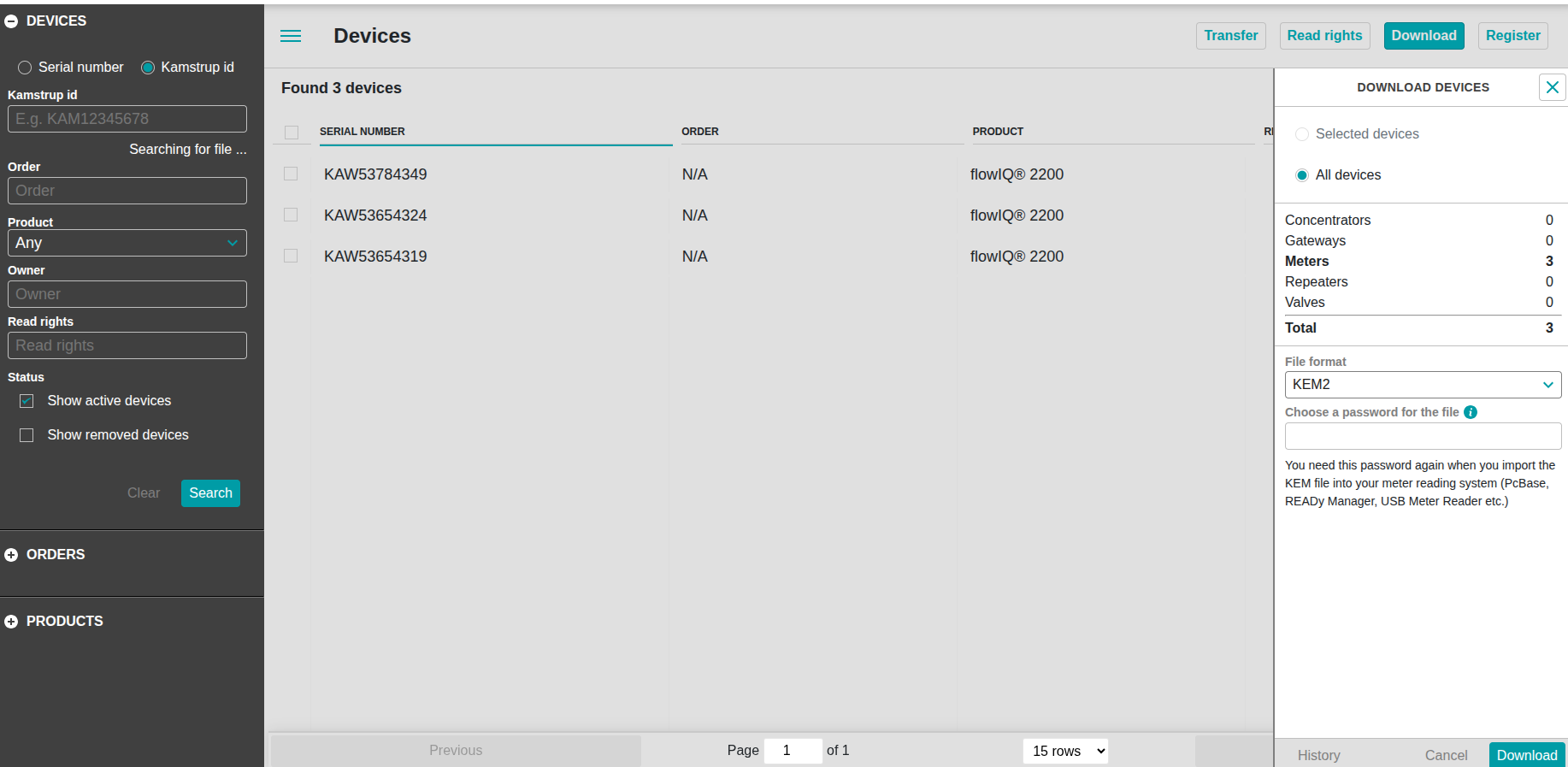
Remember this password: the KEM2 file is encrypted with it, and you need it to open the file.
Decrypt it with the KEM File Parser
The KEM2 file cannot be read directly. To decrypt it, download Kamstrup's KEM File Parser:
-
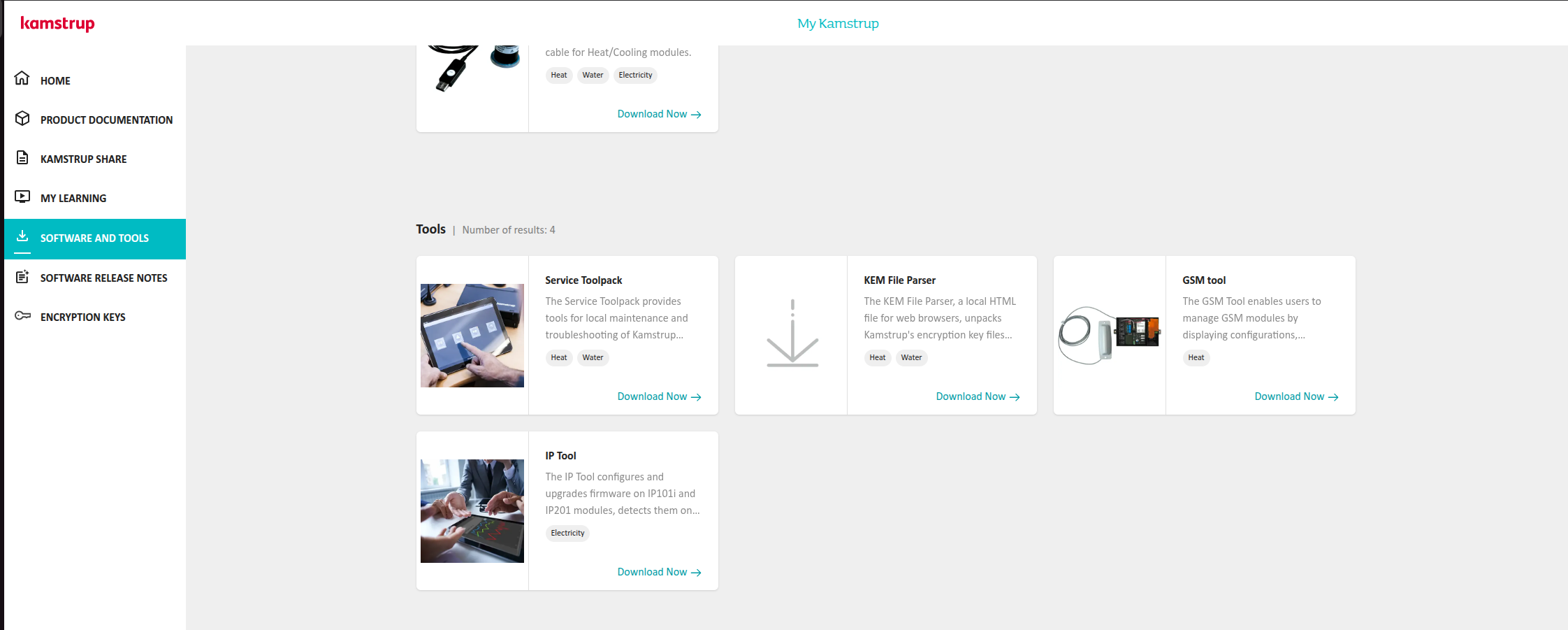
In MyKamstrup, select Software and tools in the left navigation panel.
-
Under Tools, find KEM File Parser and click Download Now.
-
The KEM File Parser is a local HTML file: open it in your web browser, load your KEM2 file and enter its password.
The decrypted content lists every meter with its serial number, LoRaWAN DevEUI and keys. For each meter, find the key named DEK:
<Device>
    <DeviceId>
        <SerialNumber>12345678</SerialNumber>
        <ManufacturerId>KAW</ManufacturerId>
    </DeviceId>
    ...
    <Keys>
        <Key>
            <Name>DEK</Name>
            <Value>XXXXXXXXXXXXXXXXXXXXXXXXXXXXXXXX</Value>
        </Key>
        <Key>
            <Name>LorawanAppKey</Name>
            <Value>XXXXXXXXXXXXXXXXXXXXXXXXXXXXXXXX</Value>
        </Key>
    </Keys>
    <ExtendedDeviceData>
        <DeviceProperty>
            <Name>LorawanDevEUI</Name>
            <Value>0013EA01XXXXXXXX</Value>
        </DeviceProperty>
    </ExtendedDeviceData>
</Device>
The same file also holds the LorawanAppKey you need to create the device. Keep the file confidential: it contains the keys of your meters.
Configuring the DEK on ThingPark Enterprise
Create your device with its DevEUI, JoinEUI and AppKey, and select the Kamstrup flowIQ®2200 model. You should then land on the device page:
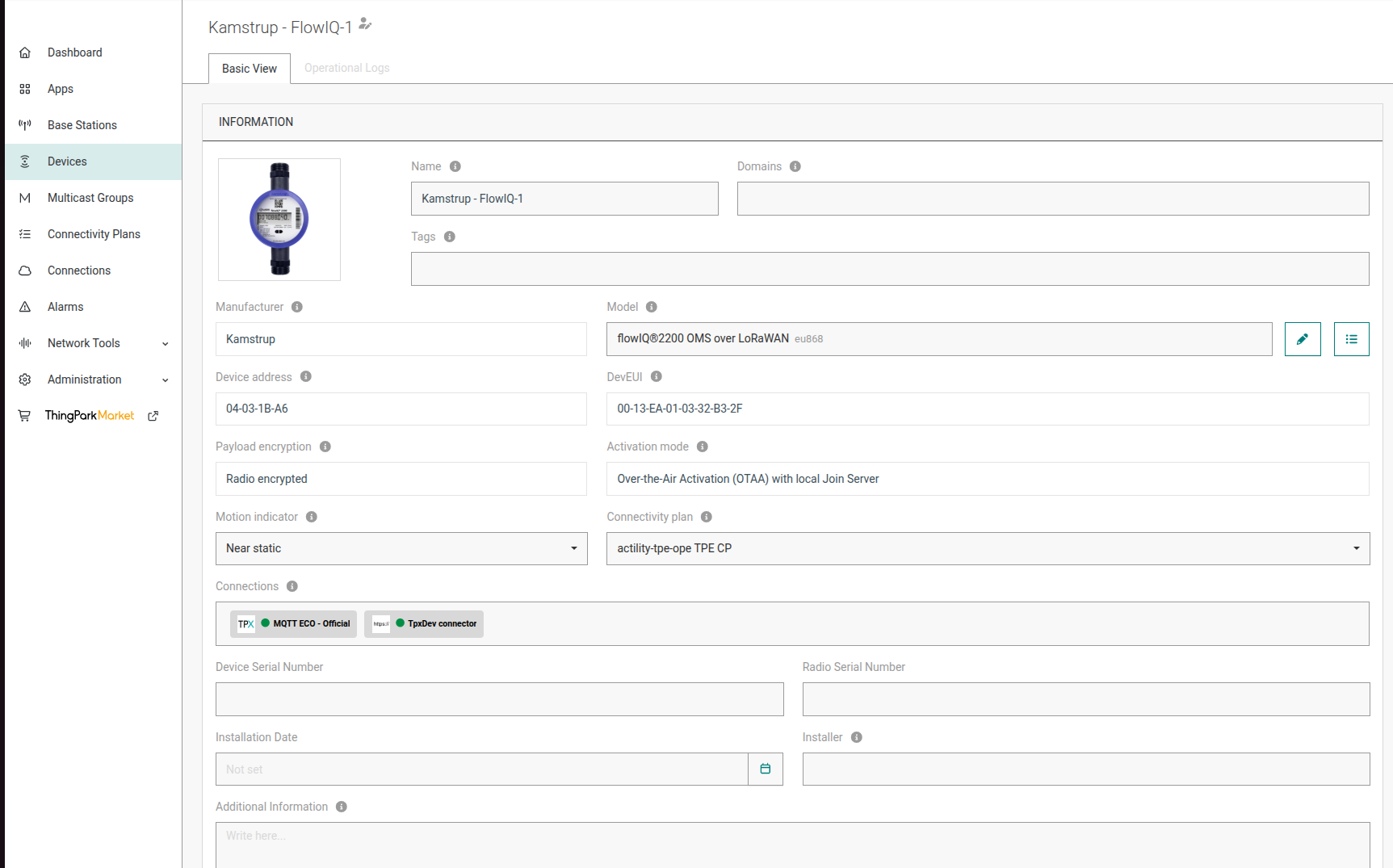
Right beside the device's picture, you can see a Tags field. Add the meter's DEK as a tag:
DEK=XXXXXXXXXXXXXXXXXXXXXXXXXXXXXXXX
Use the 32 hexadecimal characters of the DEK value shown by the KEM File Parser, without spaces. It should look like this:

Without the DEK tag, the driver cannot decrypt the meter's frames and every uplink fails to decode.
Add the tag before the meter joins the network, so that its installation frame can be decoded (see below).
Troubleshooting: "Context is empty"
Encrypted data frames may fail to decode with this error:
"payloadDecodedError": {
    "code": "com-5000",
    "message": "Context is empty. Cannot retrieve serialNumber"
}
What the context is
Data frames do not carry the meter's identity, but decrypting them requires it. The identity is only sent in the installation frame:
| Field | Description |
|---|---|
| Serial number | M-Bus identification number of the meter |
| Manufacturer | Manufacturer code (for example KAW) |
| Version | Meter version |
| Device type | Meter type (for example cold water) |
When the driver decodes the installation frame, ThingPark X stores these four values for the device. This is the context. Every following data frame is decrypted with it.
Why it happens
The meter only sends its installation frame after joining the network, until the network acknowledges it. If that frame was not decoded and stored, the context is missing and all data frames fail. Common causes:
- The
DEKtag was added after the meter had already joined. - The device or the Kamstrup driver was set up after the installation frame was received.
- The context was not stored after decoding process or expired and deleted after a while.
The meter does not resend the installation frame on its own, so the error persists.
How to fix it
Make the meter send a new installation frame. There are two ways:
- Make the meter rejoin the network. After every successful join, the meter sends its installation frame again.
- Trigger a "call" from the meter's menu. This restarts the installation procedure, and the meter sends its installation frame until the network acknowledges it.
Before doing either, check that the DEK tag is set on the device.
Once the installation frame (FPort 6) has been decoded, the following data frames decode normally.