CREATING A NETMORE GO CONNECTION
Netmore GO is the data visualization application of Netmore for ThingPark Enterprise customers: device and fleet dashboards, rules and notifications, reports and exports.
This page explains how to create the ThingPark X IoT Flow connection that forwards the uplinks of your devices to Netmore GO. To prepare your Netmore GO workspace and add your devices, see the Netmore GO manual.
The data follows this path: LoRaWAN® device → ThingPark Enterprise → ThingPark X IoT Flow connection → Netmore GO.
You normally create this connection once per ThingPark Enterprise account: all the devices of the account can then use it.
Netmore GO runs on the Datacake platform. Until a dedicated Netmore GO connector is available, you create the connection with the Datacake connector.
Collecting Expected Information
Parameters required
| Field | Description |
|---|---|
Access Token | API token of your Netmore GO account, in Account Settings -> API Token. |
Get your Access Token
-
Log in to Netmore GO and open the workspace that will receive the data of your devices.
-
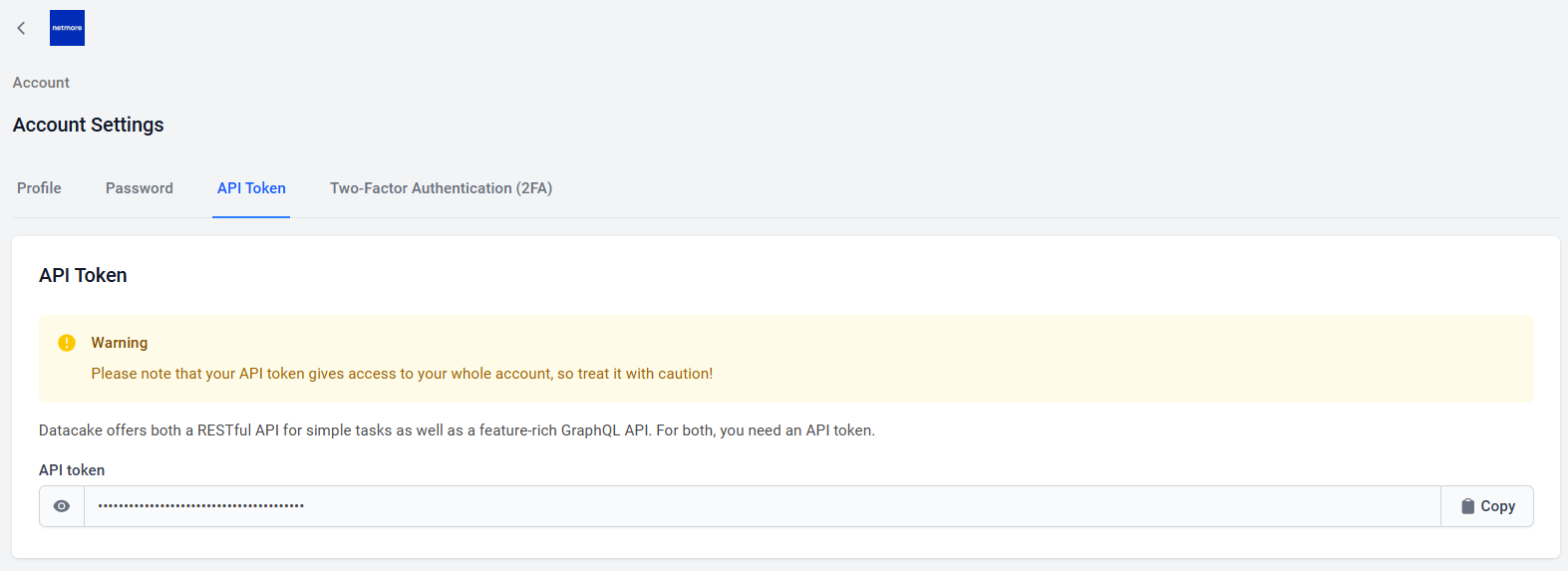
Open Account -> Account Settings.
-
Open the API Token tab and click Copy.
-
Keep the token in a safe place until the connection is created.
This token gives access to your whole Netmore GO account. Treat it like a password: do not put it in tickets, screenshots, shared documents or emails.
Creating a Connection With UI
-
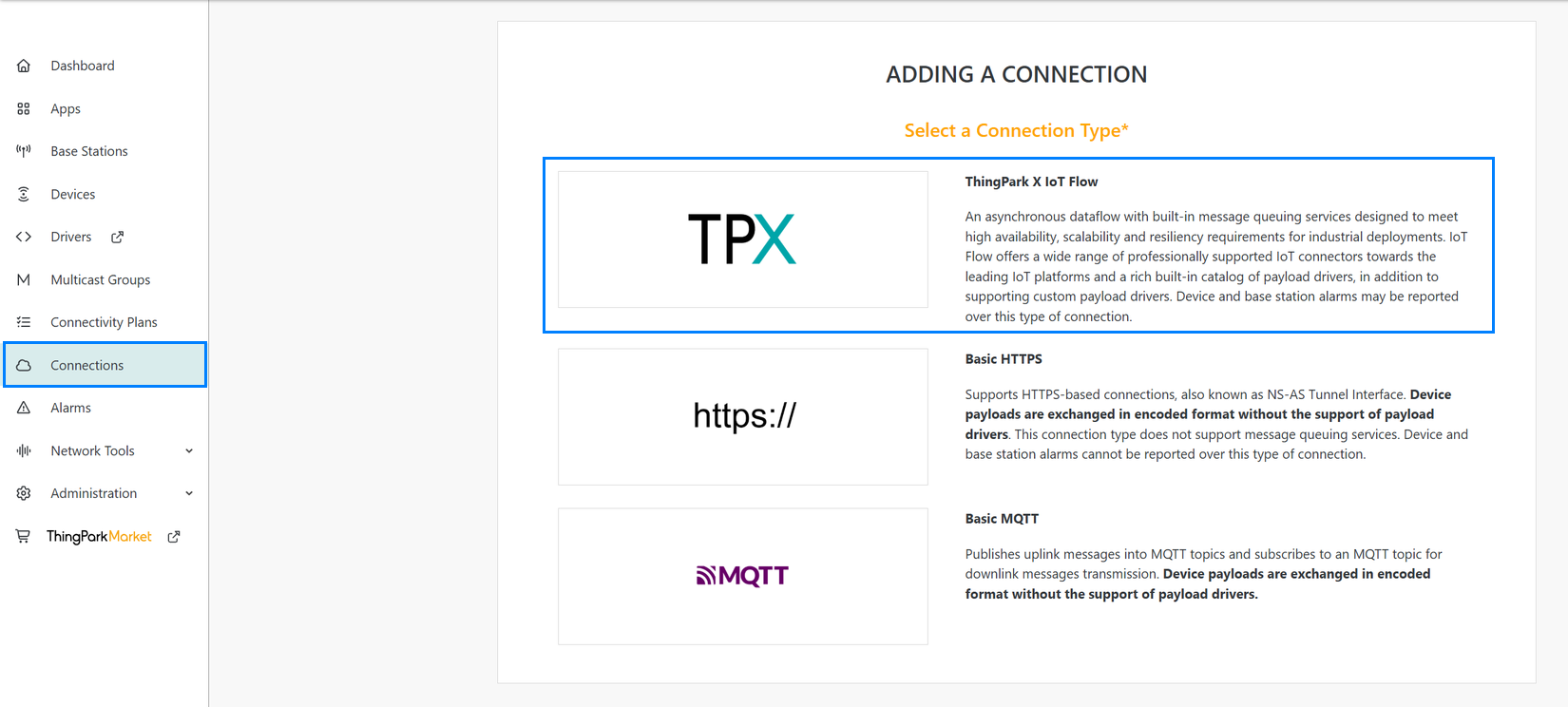
In ThingPark Enterprise, click Connections -> + Add Connection -> ThingPark X IoT Flow.
-
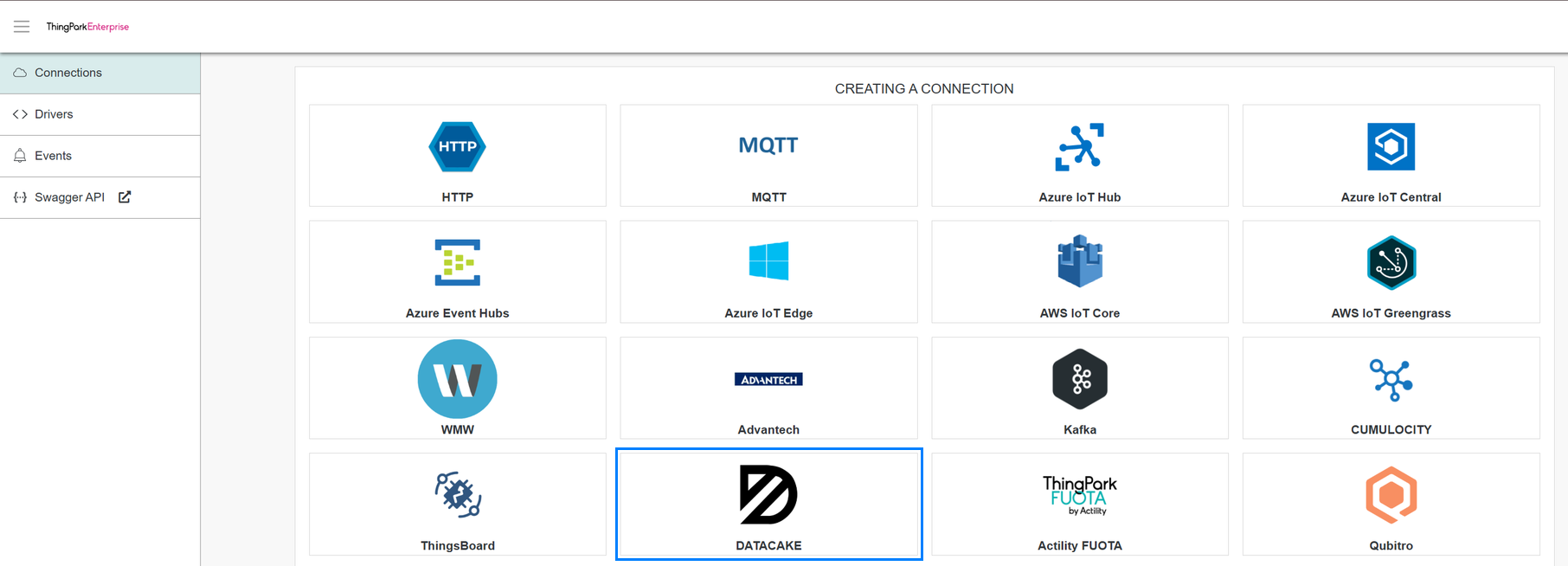
In ThingPark X IoT Flow, click DATACAKE in the list of connectors.
-
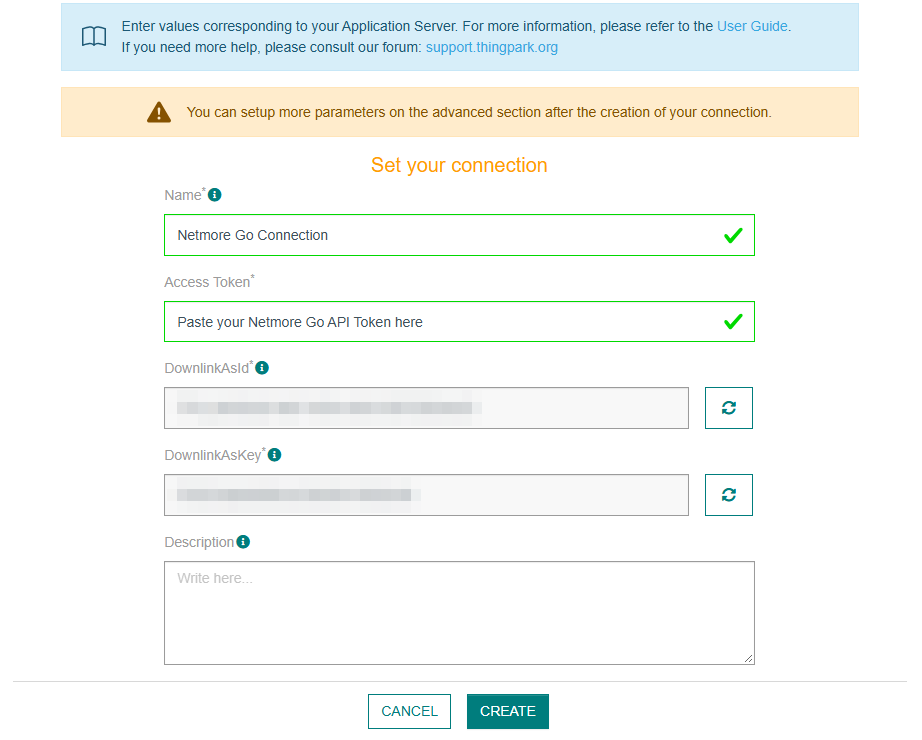
Fill in the form:
- Name: a clear name for the connection, for example
Netmore GO Connection. - Access Token: the API token copied from Netmore GO.
- DownlinkAsId and DownlinkAsKey: generated automatically, keep them as they are.
- Description: optional.
- Name: a clear name for the connection, for example
-
Click Create. A notification confirms that the connection has been created, and the connection details open.
-
In the connection details, check that the connection is opened (see Connection States).
Parameters marked with * are mandatory.
Creating a Connection With API
The creation of a connection establishes a messaging transport link to Netmore GO.
To do this, you need to use the Connections group resource:
POST/connectionsto create a new Connection instancePUT/connectionsto update a Connection instanceDELETE/connectionsto delete a Connection instance
We follow the REST-full API pattern, when updating configuration properties for a connection resource. Thus, you must also provide the whole configuration again.
Example for creation of a new connection instance:
POST /connections
{
  "name": "Actility to Netmore GO",
  "connectorId": "actility-http-iot",
  "configuration": {
      "destinationURL": "https://api.datacake.co/integrations/lorawan/actility/",
      "headers": {
          "Authorization": "Token {YOUR-NETMORE-GO-ACCESS-TOKEN}"
      }
  },
  "brand": "DATACAKE"
}
The following table lists the properties applicable to a connection instance.
| Field | Description |
|---|---|
connectorId | Must be set to actility-http-iot. |
configuration/destinationURL | Must be set to https://api.datacake.co/integrations/lorawan/actility/. |
configuration/headers/Authorization | Token followed by the Access Token of your Netmore GO account. |
brand | Must be set to DATACAKE. |
All properties are not present in this example. You can check the rest of these properties in the common parameters section.
Associating Devices With the Connection
Each device must be associated with the connection in ThingPark Enterprise, and added in Netmore GO with the same DevEUI. The Netmore GO manual describes both steps:
- Connecting your devices in ThingPark Enterprise: select the connection on a device, at provisioning time, or in bulk with a CSV file.
- Adding your devices in Netmore GO: add each device as a LoRaWAN® device and set its Network Server to Netmore ThingPark.
Displaying Information to Know if It Worked
-
In ThingPark Enterprise, open Connections, select your Netmore GO connection, and click Open ThingPark X IoT Flow. The connection must be active, and its counters show the uplinks sent to Netmore GO.
-
In Netmore GO, open a device and check its Debug Log: each uplink appears with the decoded values.
Troubleshooting
- No data in Netmore GO: check that the Access Token is still valid, that the device is associated with the connection in ThingPark Enterprise, and that the DevEUI and the Network Server (Netmore ThingPark) are correct in Netmore GO.
- Netmore GO manual: https://docs.thingpark.com/netmore-go/