Managing multicast groups
Viewing the multicast group list
To view the list of multicast groups under your account, click Multicast Groups from the left menu of the user interface. To access the details of a given multicast group, click its Name.
You can use filters to focus on multicast groups fulfilling specific criteria. For more information, see Filtering multicast groups.
To learn more about the meaning of each column in the table, see Multicast group attributes or hover your pointer over the column header to display its tooltip.
Hover your pointer on the multicast group name, to open its details in
a new tab of your browser.
This tip is useful when you want to compare
the configuration or performance of several multicast groups, by opening
their detailed pages side by side.
The numbers displayed at the top left of the tab indicate the number
of multicast groups on the current page out of the total number of multicast groups
matching your filtering criteria (if you have set active filters).
In the example  , 987 is the total
count of multicast groups and 1-100 means that you are on the first page and each
page includes 100 multicast groups.
, 987 is the total
count of multicast groups and 1-100 means that you are on the first page and each
page includes 100 multicast groups.
- You may change the number of elements per page through
 above the table.
 - Use the arrows
 at the bottom of the table to
switch between pages. You may also type the required page number to directly
access it.
at the bottom of the table to
switch between pages. You may also type the required page number to directly
access it.
Other actions on the device list are described in the following table:
| Action | Tips |
|---|---|
| Sorting multicast groups | To sort all multicast groups of the list according to a column header, click the ascending or descending gray arrow of this column  . When the arrow turns white, it is active. The sorting is made on the entire list of multicast groups whatever the number of pages of the list. . When the arrow turns white, it is active. The sorting is made on the entire list of multicast groups whatever the number of pages of the list.By default, multicast groups are ordered by ascending name. |
| Hiding /Showing columns | click  at the top right of the table, then select the columns to show/hide. Your selection is saved in your web browser and applies to the same computer. at the top right of the table, then select the columns to show/hide. Your selection is saved in your web browser and applies to the same computer. |
| Exporting your list | To export the full list of multicast groups matching your active filters (across all pages), click  at the top right of the table. It exports the device details to a CSV file: all columns are exported regardless of their display status, multicast groups are filtered and ordered as in your list. You can export up to 50,000 multicast groups. at the top right of the table. It exports the device details to a CSV file: all columns are exported regardless of their display status, multicast groups are filtered and ordered as in your list. You can export up to 50,000 multicast groups. |
Filtering multicast groups
You can use filters to focus on multicast groups fulfilling specific criteria. Your last filter selection is saved in your web browser and applies to the same computer.
- If no filtering is currently applied to your list, click Add filter.
- Else, to edit the active filters, click Edit filters.
- To delete a specific active filter, click the filter
cross
 .
. - To delete all active filters, click Clear all.
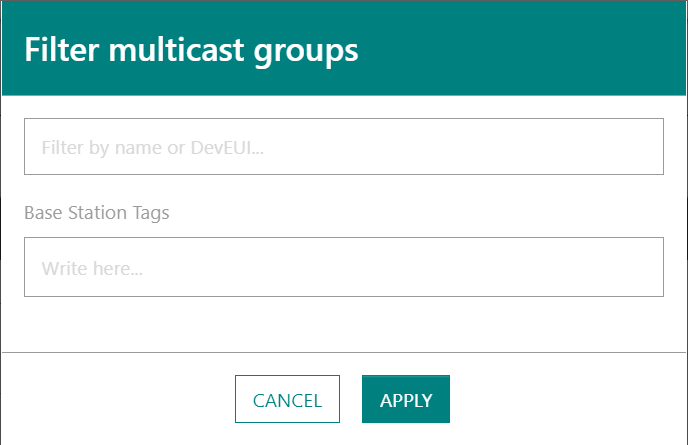
In the Filter multicast groups dialog box that opens, restrict your search using the filters you want.
| Filter | Description |
|---|---|
| Filter by name or DevEUI | Single-valued search by name or DevEUI. The search is case-insensitive, it supports prefix match as well as wildcard by % character to search within a string. |
| Base Station Tags | Autosuggestion of existing base station tags. Multiple tags allowed. |
| Domains | Only display multicast groups associated with one of the specified domains. This filter is only available if the segregation based on domains has been enabled by an administrator. See About domains for more details. |
| Connectivity plan | All or one specific connectivity plan of the list associated with your devices fleet. This filter is only available if Connectivity Plans is displayed in the main menu. |
Associating multicast groups with domains
You may associate your multicast groups with domains to restrict their visibility to only authorized users. For more details see About domains.
You must be assigned either an Administrator or a Device Manager role to run this task. Read-only users (being assigned a Viewer role) cannot associate multicast groups with domains.
If your user account has domain restrictions, the multicast groups must still satisfy your domain restrictions after the execution of this procedure. It means that:
- You cannot replace an existing domain with another domain not matching your domain restrictions.
- You cannot remove a domain matching your domain restrictions.
Follow these steps to associate your multicast groups with domains in bulk, instead of doing it one by one:
-
From the left menu, select Multicast Groups.
-
Use the adequate filters to find the multicast groups to update. To learn more, see Filtering multicast groups.
-
Select one or more multicast groups by checking the left box. Checking the header checkbox selects all the multicast groups on the current page. Then click the
 button
above the table to update the domain association on the selected multicast groups.
button
above the table to update the domain association on the selected multicast groups. -
To assign new domains to the selected multicast groups, click
 on
the field Add or replace domains.
on
the field Add or replace domains.
This task can also be used to replace an existing domain from a domain group by another domain from this same group. Note that a multicast group cannot be associated with two domains belonging to the same group.- In Name, type to find an existing domain.
- Click the folding arrow
 to minimize the
dialog box.
to minimize the
dialog box.
If you want to add more domains, repeat the steps above as necessary.
-
To remove domains from the selected multicast groups, click
in the field Remove domains, then type to find the domains to remove.tipAt any time, if you want to cancel the addition/deletion of some domains without starting over the whole process, click the
xat the end of each domain badge. -
When you are done, click Validate.