Using RF probes
About RF probes
Starting in ThingPark 8.1, you can enable an RF probe on a base station. An RF probe is a virtual LoRaWAN device embedded in the base station that:
- Sends periodic uplink packets like a normal end-device.
- These uplinks are received by nearby base stations to test RF quality and network performance.
The deterministic nature of the RF probe traffic makes it easier to identify radio issues without being impacted by the randomness of the LoRaWAN traffic generated by real devices.
This feature is supported only for base stations using ThingPark LRR packet forwarder (LRR version 2.8.36 or higher).
It is not supported by Basics Station packet forwarder.
Benefits
-
Detect RF problems
- On the transmitting base station: identify RF transmission issues on a given base station, when the quality of reception of its own probes by all its neighbor base stations gets degraded.
- On the receiving base stations: identify RF reception issues on a give base station, when the quality of reception of all the RF probes transmitted by its neighbor base stations gets degraded.
In either case, the degradation may be sudden (for instance, due to hardware failure) or progressive (for instance, due to environmental or aging factors).
-
Assess & improve network geolocation accuracy
Sending periodic uplink packets from known geographic locations allows assessing the accuracy of the network geolocation feature, by comparing the derived location (estimated by the network) with the real location of the emitting BS; then fine-tune the geolocation algorithm accordingly. -
In-depth network troubleshooting
RF probes help diagnosing connectivity issues between base stations and the ThingPark core network. For instance, if a BS is disconnected from the core network but still sends RF probes that are well received by its neighbors, this indicates that the LRR application is still running properly on the base station, ruling out power failure or hardware crash issues and pointing out most-likely to a backhaul connection issue.
Technical characteristics
The main characteristics of RF probes are:
-
The virtual device associated with each RF probe uses the ABP mode in class A without any downlink traffic and no MAC commands.
-
The DevEUI, DevAddr and security keys of each probe are automatically assigned by ThingPark.
noteTo easily identify the DevEUI corresponding to each base station, the probe DevEUI is prefixed by
F0-3D-29-01followed by the LRR-ID of the base station.Example: For a base station having LRR-ID 10-00-47-30, the probe's DevEUI is F0-3D-29-01-10-00-47-30.
-
Uplink traffic uses the unconfirmed mode and Fport 169 (configurable systemwide).
-
The frame payload includes the LRR-ID (8 hexa digits) and the antenna-ID (2 hexa digits) of the emitting base station.
-
Default settings (configurable at RF Region level, see Configuring RF probes):
- Periodicity: 1 packet every 24 hours
- TxPower: maximum allowed Tx Power defined by the country regulations
- Data Rate and Logical Channel of each packet: random pickout from the supported range defined in the RF Region
-
When the BS has several RF antennas, packets are sent over the different antennas using a round-robin algorithm.
Activating RF probes
To activate RF probes, you must have one of the following roles: Administrator or Base Station Manager.
Additionally, DO NOT activate the RF probe on an isolated base station having no coverage overlap with its neighbor base stations.
-
Select the base station on which you want to enable the RF probe. You may search it by its name or ID.
-
Go to the RF probe tab, then click ENABLE RF PROBE.
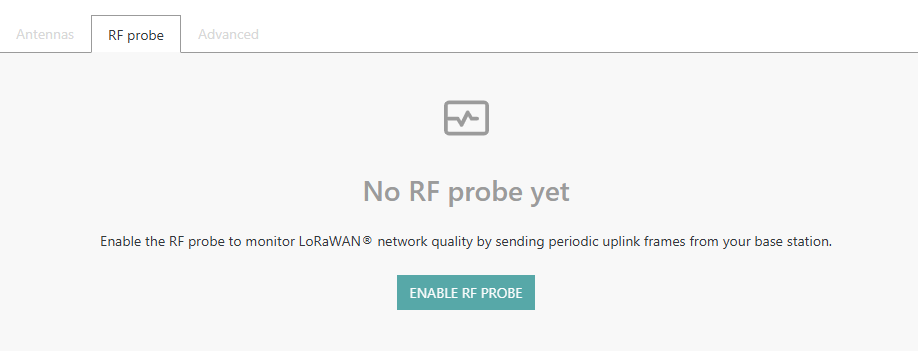
- You may associate one of several connections with your RF probe,
to receive the probe packets on external application servers.
To do so, click the Connections field, then to add
new connections, then confirm through the
to add
new connections, then confirm through the  button.
Configuring RF probes
As described in the main technical characteristics, the transmission of each probe packet follows some default rules that administrators may customize if needed. The following table shows the RF Region parameter associated with each configuration aspect.
RF Region parameters cannot be directly customized through the TPE user interface. Contact your support team if you need to update any of the RF Region parameters listed below.
| Aspect | RF Region parameter | Default setting |
|---|---|---|
| Periodicity | probeInterval | 1 packet every 24 hours |
| Tx Power | probeTxPower | set to the maximum allowed end-device EIRP in the country of operation (for instance, 16dBm in EU868) |
| Data Rate | SF range is configurable by probeSFMin and probeSFMax | random selection from the allowed data rates (spreading factors) used by ThingPark ADR |
| Logical Channels | Channel Mask is configurable by probeChannelMask | random selection from the list of activated RF channels |
Analyzing RF performance with probes
RF probe details are visible on the user interface, in the RF probe tab of the base station details.
Key metrics
The reported statistics are very similar to those reported for real devices. To learn more, see Dynamic LoRaWAN attributes.
The STATUS widget shows the reception status of the uplink packets sent by this probe by surrounding base stations.
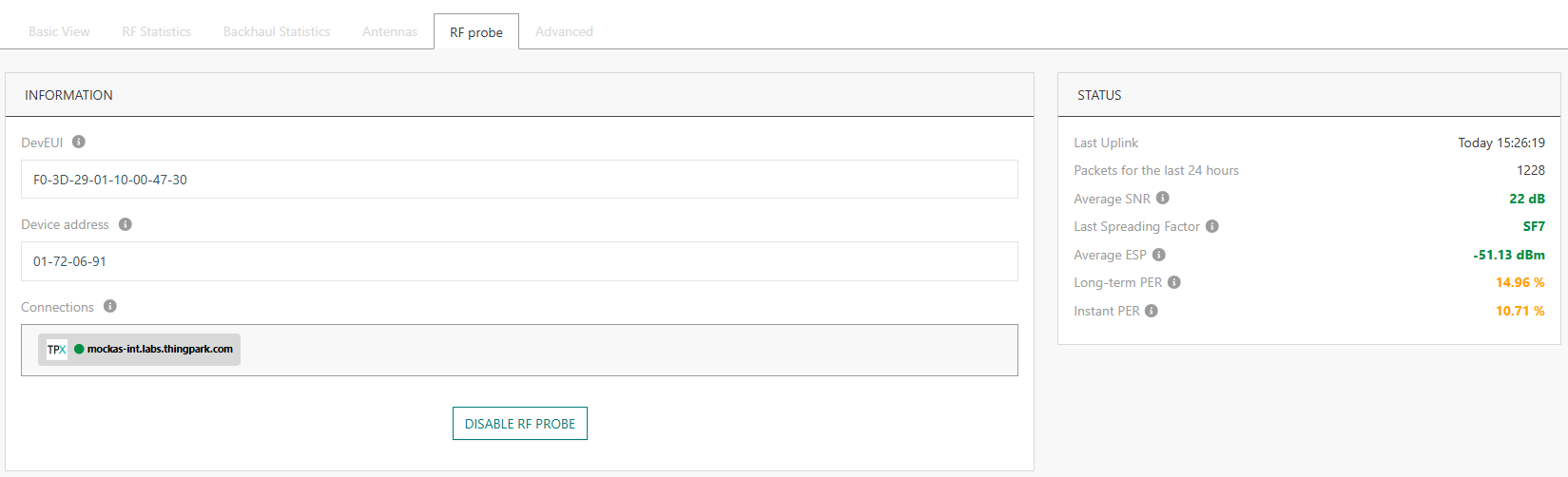
The RADIO STATISTICS widget provide the time evolution (daily or weekly average) of the following radio metrics.
- Number of uplink packets received (in green) or lost (in red) by surrounding base stations.
- Estimated Signal Power (ESP), measured by receiving base stations.
- Received Signal Strength Indicator (RSSI), measured by receiving base stations. Use the same tip above to focus on a specific BS.
- Signal to Noise Ratio (SNR), measured by receiving base stations. Use the same tip above to focus on a specific BS.
-
Use
 to change the time scale of the graphs.
 -
You may focus on a specific receiving BS by selecting it in the Base Station menu at the top-left corner of this widget.
By default, the ESP/RSSI/SNR of the best-serving base station is displayed. This best-serving BS may be different on each received probe packet.
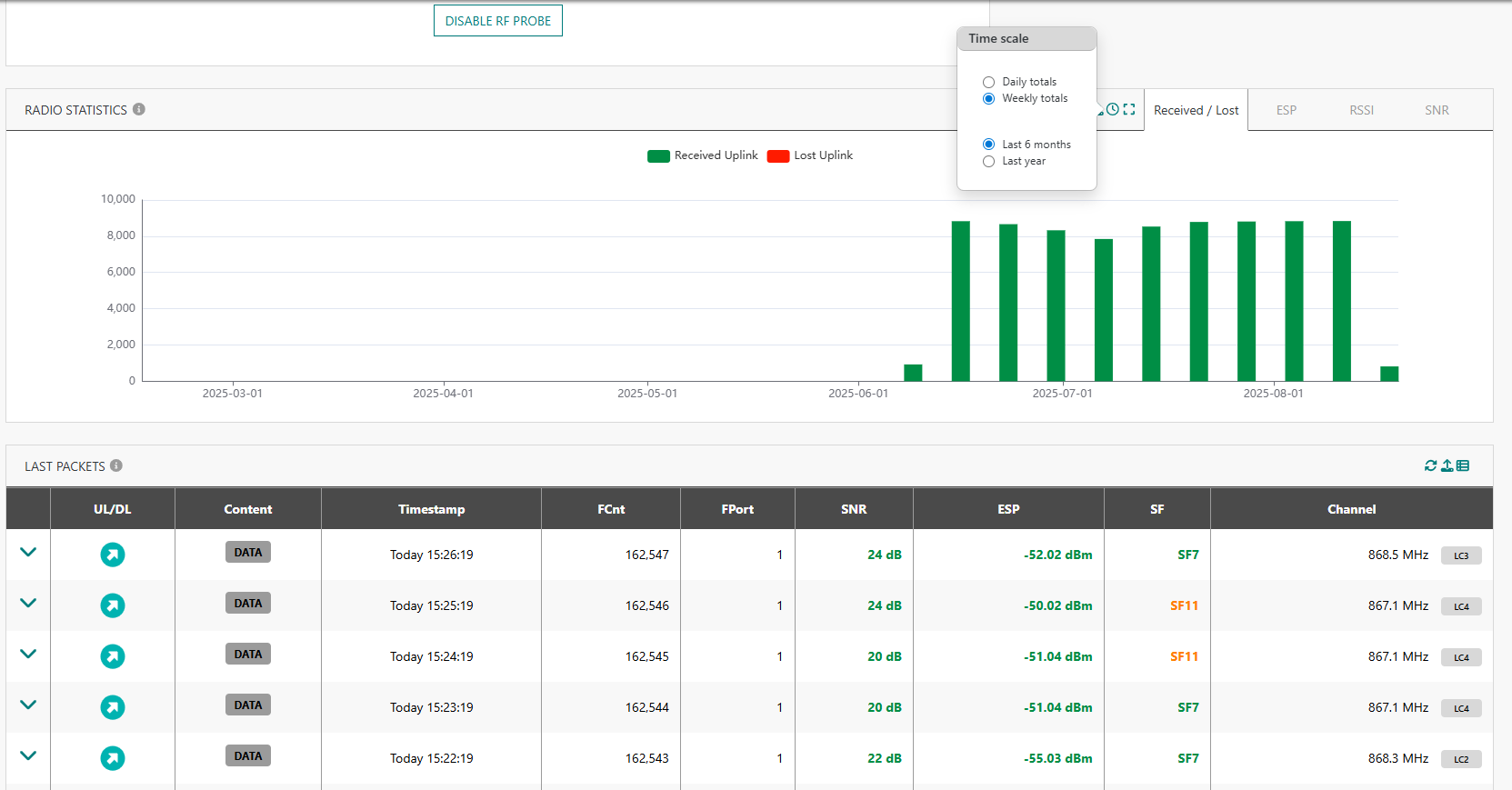
An empty graph means one of the following possibilities:
- This base station is isolated from its neighbor base stations, so its probe packets are never captured by any neighbor. In this case, you should deactivate the RF probe feature on this BS.
- This base station does not emit probe packets over the air, pointing out to an RF defect such as a faulty radio board or broken antenna.
- If there is only one neighbor BS that may receive the probe packets of this serving BS, this receiving BS may be out-of-service, either due to an RF defect or backhaul disconnection.
RF probe traffic in WLogger
In Wireless Logger, the RF probe traffic is visible by selecting LoRaWAN RF probes from the top right of the screen.

-
The subscriber sees the traffic sent by his RF probes, received by any LoRaWAN base station without any restriction. If the authenticated user has domain restrictions, the traffic is visible only for RF probes matching his domain restrictions.
-
The subscriber does not see the RF probe traffic from foreign base stations, even when received on the subscriber's own base stations.
Detecting anomalies on the transmitting BS
The idea here is that the base station’s own RF probe traffic should be consistently received by neighboring base stations. If it starts being received poorly everywhere, it suggests the transmitting base station might be having RF issues.
Step-by-Step
-
Enable RF probes on the base station you want to test.
-
From the RF probe tab of this base station, go to LAST PACKETS widget, then click SHOW ALL to see how the the probe packets sent by this base station are received by its neighbors.
-> If many neighboring base stations are receiving these uplinks with poor signal metrics (e.g., low SNR, high error rate), it suggests a transmission anomaly on the base station itself.
If the base station’s probe is not received at all (or barely), that is a strong indication the transmitting RF path may be defective.
-
To help interpretation, combine probe reception results with RF statistics or alarms on neighbors (for instance, high invalid CRC rate).
Detecting anomalies on the receiving BS
When surrounding base stations receive the probe frames, they should show normal quality metrics. If a specific neighbor repeatedly gets poor quality or no reception from all nearby probes, that neighbor’s reception chain might be malfunctioning.
Step-by-Step
-
Make sure the RF probe feature is already activated on several base stations surrounding the base station you want to test. The surrounding base stations should be located near the test BS, so that uplink packets sent by these base stations are normally received by this test BS with fair quality.
-
Open Wireless Logger and switch to LoRaWAN RF probes:
-
Fill the LRR Id Filtering field with the LRR-ID of your test BS. This filter will show probe packets received by this test BS as the best-LRR.
-
Check the quality of probe reception by inspecting the ESP and SNR metrics of each packet. If reception is systematically poor, this may point out to RX disfunction.
-
Confirm this finding with base station performance stats and alarms. such as unusually high invalid uplink physical CRC alarm or low uplink traffic volume.