Managing device datasets
A device dataset is a group of LoRaWAN devices, imported by the user in the Network Coverage tool. They may be used in selecting the best base station locations while simulating RF predictions, as described in Smart Antenna Selection.
To download the list of devices included in a dataset, click  on the last column of the dataset list.
Only the dataset name may be changed after creation, but the dataset content cannot be modified.
If you want to update the content, you must delete the device dataset and create another one.
Creating a new dataset
By importing devices from your ThingPark account
You can select devices from your ThingPark Enterprise account to create a new dataset. The devices can be filtered by Domain and/or by Tags.
-
From the left panel, click Device Dataset, then click + ADD DATASET from the top-right corner of the page.
-
Click Import from ThingPark
-
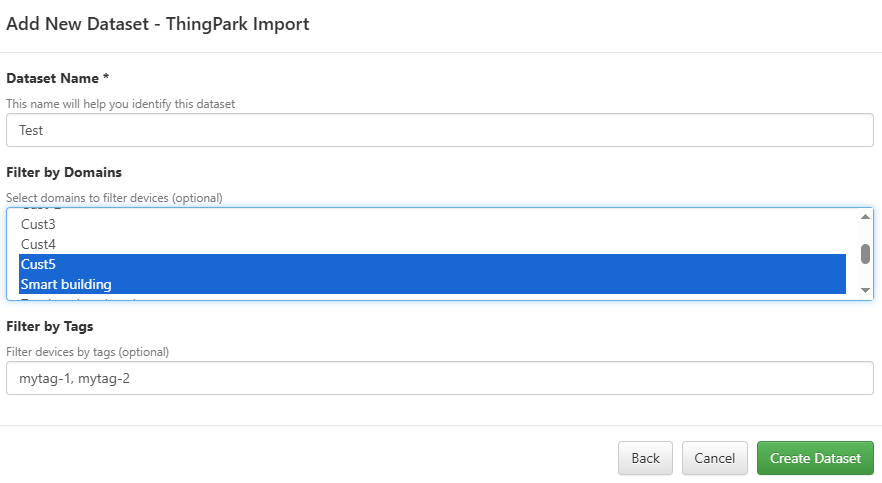
Give a friendly name to your dataset, in the "Dataset Name" field.
-
If you want to limit the device import scope to devices associated with a specific domain or tag(s), you may optionally set the domains/tags of interest.
-
To filter devices by multiple tags, use
,to separate your different entries. The resulting list of devices shall be those associated with all the tags you specified. -
To filter devices by multiple domains, use the
Ctrltouch of your keyboard to select many. The resulting list of devices shall be those associated with all the domains you selected. To learn more about domains, see About domains.
-
-
Once you are done, click Create dataset.
By importing devices from a CSV file
You may add a new device dataset by importing a CSV file.
-
From the left panel, click Device Dataset, then click + ADD DATASET from the top-right corner of the page.
-
Click Import from CSV file
-
Give a friendly name to your dataset, in the "Dataset Name" field.
-
Prepare your CSV file, by respecting the format described in the sample file downloadable from the user interface.
- The mandatory columns are the Name and the device coordinates (Latitude and Longitude).
- The Location column is optional: it indicates the indoor location of each device.
- If you fill this column, the tool shall use this device-specific information in simulations. Authorized values are:
outdoorindoor daylight,deep indoororbasement. To learn more, see Device location. - If the location information is missing for any device, the Default Device Location set by the user in the simulation settings is assumed.
- If you fill this column, the tool shall use this device-specific information in simulations. Authorized values are:
-
When your CSV file is ready, click Choose File to browse locally your PC and import it.
-
If the file contains errors, the tool shall display an error log as illustrated below.
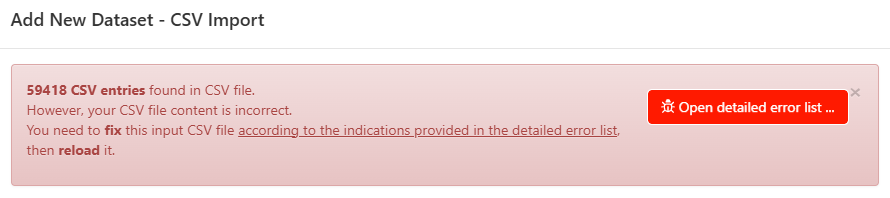
You must download it, fix the errors then reimport the corrected CSV file.
-
Upon scanning the CSV file without detecting syntax errors, the tool displays a green text as illustrated below.

You are now ready to click Create dataset to complete the import process.
Exporting device dataset
The device dataset can be exported in KML format to be overlaid with a simulation result on Google Earth.
This overlay of device coordinates with the RF simulation output could be interesting to:
-
Check if your devices are inside the covered area.
-
If your devices are already exchanging LoRaWAN traffic with the network, compare the key performance indicators of your devices with the predicted RF coverage by the tool.
tipFor instance, if a device has a high UL packet error rate (UL PER > 20%) or has a health state "Initialization" or "Connection Error", and this device is not situated in the RF coverage area predicted by the simulation: -> This shows that the RF prediction results are consistent with the field feedback.
To export a dataset to KML format:
-
Select the dataset you want to export by ticking its checkbox.
-
Click the
 button above the list.
 -
For datasets originating from your ThingPark Enterprise account, select the RF Metric that you want to represent by a colored marker in the exported KML file.
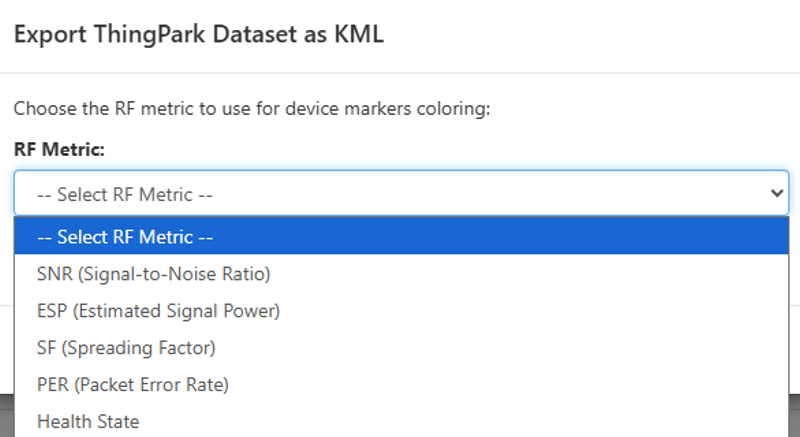
The following table provides information about the color code of each metric:
Metric Green marker Yellow marker Red marker Signal to Noise Ratio (SNR) SNR >= -9 dB-14 <= SNR < -9 dBSNR < -14 dBEstimated Signal Power (ESP) ESP >= -100 dBm-120 <= ESP < -100 dBmESP < -120 dBmSpreading Factor (SF) SF7SF8SF9SF10SF11SF12Long-term Packet Error Rate (PER) PER <= 10%20% <= PER < 10%PER > 20%Health State ActiveSuspendedorInitializationConnection Error
To superpose your devices with a simulation result on Google Earth:
- Open the simulation file exported in KMZ format.
- On Google Earth's top menu, click File > Import.
- Select the device dataset KML file.
- To save this display as a unique KMZ file, select the Temporary locations, right-click on it, then Save location as... and name your new file.
Deleting device dataset
- Select the dataset you want to delete by ticking its checkbox.
- Click the
 button above the list.